Getting Started
Install and update Gears, change each kind of mod setting, and find where the values are saved.
Install Gears, then change a mod's settings from the game's menus instead of editing files in its folder.
Install Gears
- Download Gears from the Gears page on Nexus Mods and unzip it.
- Put the
00000-Gearsfolder in your Mods folder, beside the mods that need it. On Windows that is%APPDATA%\7DaysToDie\Mods; the game also reads aModsfolder next to the game's own executable. - Start the game with EasyAntiCheat turned off. Gears ships a
.dll, and the game only loads code mods with EAC off.
Every player in a multiplayer game needs Gears and the mods that use it, and so does the server.
You know it worked when a Mods button appears on the main menu.
Update Gears
- Close the game.
- Delete the old
00000-Gearsfolder from your Mods folder. - Put the new
00000-Gearsfolder in its place.
Your settings are not stored in the mod folder, so replacing it keeps them. Update the server and every player at the same time, so everyone runs the same version.
The installed version is the Version value in 00000-Gears\ModInfo.xml.
Change a mod's settings
Mod settings come in two kinds, and each is changed in its own place.
| Kind | Who changes it | Where |
|---|---|---|
| Global setting — yours, and it applies in every world | you | the Mods button, from the main menu or while playing |
| World setting — the world's, and everyone in it plays with the same value | whoever starts the world | Mods World Settings, on the Mods tab of the New Game and Continue Game screens |
Global settings, in the Mods menu
Open Mods, pick a mod from the list, and open its Settings tab. Change the rows you want, then press APPLY. DEFAULTS puts every row on the page back to what the mod shipped with, and BACK leaves without saving.
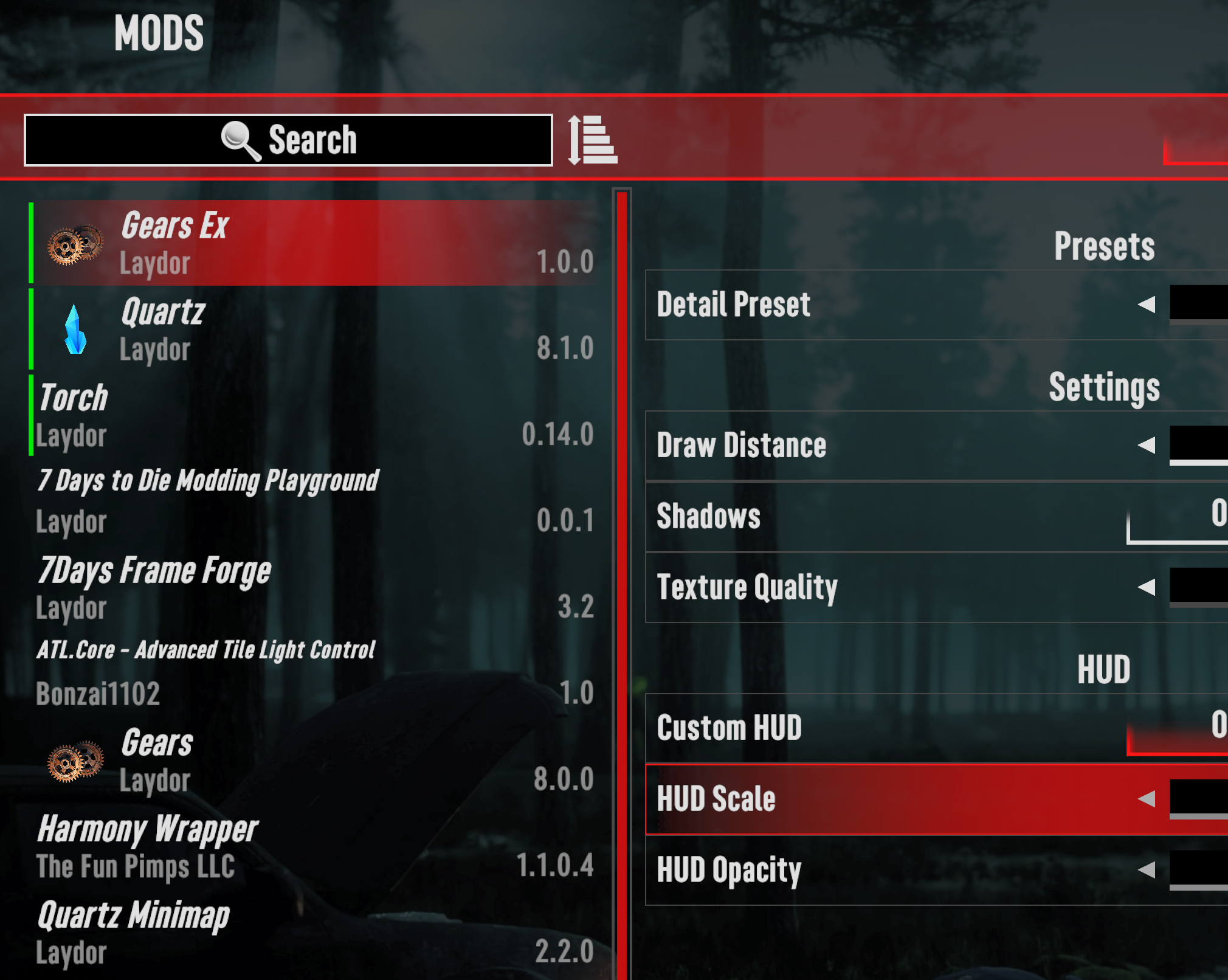
A mod can mark a setting as needing a world reload or a full game restart. Gears tells you when you change one; the mod decides what actually happens until then.
World settings, before the world starts
On the New Game or Continue Game screen, open the Mods tab, after Multiplayer, and press Mods World Settings. On the New Game screen this picks the values a new world starts with. On the Continue Game screen it changes them for a world you already have. Press SAVE when you are done.
A new world starts with every mod's default values. If you changed them on the New Game screen before, it starts with the values you picked there last.
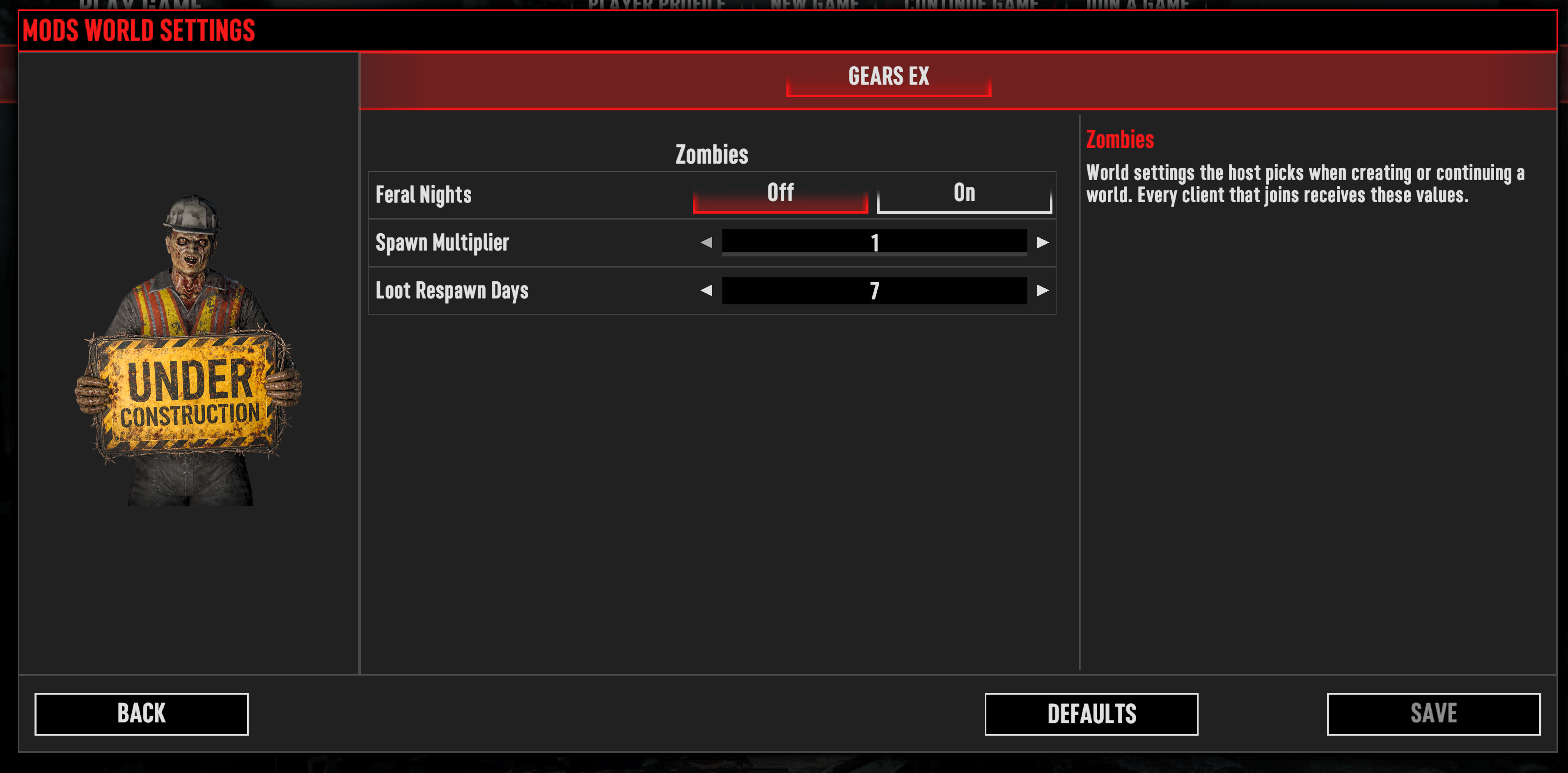
World settings cannot be changed while the world is running. Leave the world, change them on the Continue Game screen, and start it again.
In multiplayer, the host's world settings are the ones everyone plays with. Your own copy of those values is replaced by the server's when you join. Your global settings are untouched — they stay yours on every server.
On a server you rent or run yourself, there is no menu to press. See World Settings on a Dedicated Server and Global Settings on a Dedicated Server.
Where your settings are saved
| What | File |
|---|---|
| Your global settings, for every mod at once | %APPDATA%\7DaysToDie\Gears\ModSettings.xml |
| One world's settings | WorldModSettings.xml, in that world's save folder |
| The values a new world will start with | newGameWorldModSettings.xml, beside your saves |
These are the Windows paths. %APPDATA%\7DaysToDie is the game's user data folder. On Linux it is
~/.local/share/7DaysToDie, and on macOS it is ~/Library/Application Support/7DaysToDie. The
Gears folder and your saves sit inside it in the same places.
Gears writes all three. You never have to edit them by hand to play, and the in-game menus are the supported way to change them.
A renamed setting loses its saved value
Gears rewrites the global settings file at every startup. If a mod update renames one of its settings, the value saved under the old name is dropped and cannot be recovered. Note anything you would not want to set up again.
Removing a mod does not lose its values. Its entry stays in the file, and the values come back if you install the mod again.
Get help
The Player FAQ answers the common questions, and says where to report a problem.
Gears for Players
Install Gears, change the settings of the mods that use it, and set world and global settings on a dedicated server.
Player FAQ
Short answers for players — installing and updating Gears, who controls which settings in multiplayer, where the values are saved, and what to do when something looks wrong.